App Clip guide
Use your gift from Apple Wallet
An App Clip lets you open and use your JoyPass on iPhone, without installing the full app or creating an account. Start with your pass in Apple Wallet.
Step 01
Find your pass
Open Apple Wallet on your iPhone and select your JoyPass. You’ll find it alongside your other cards and tickets.
Not in Wallet yet?
Open the gift link you received and tap Add to Apple Wallet first.
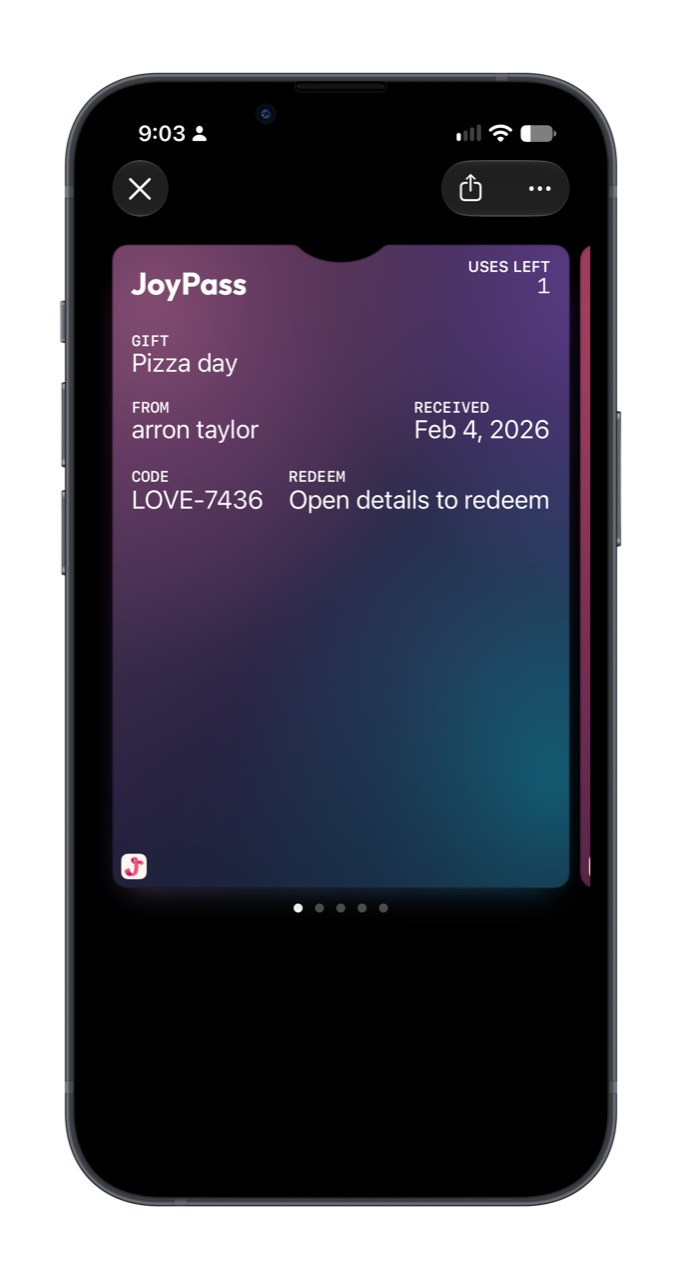 Enlarge screenshot
Step 02
Open Pass Details
Tap the three dots at the top right of your pass. In the menu that opens, choose Pass Details.
This is where Wallet keeps the links for opening and using your gift.
Next: open the App Clip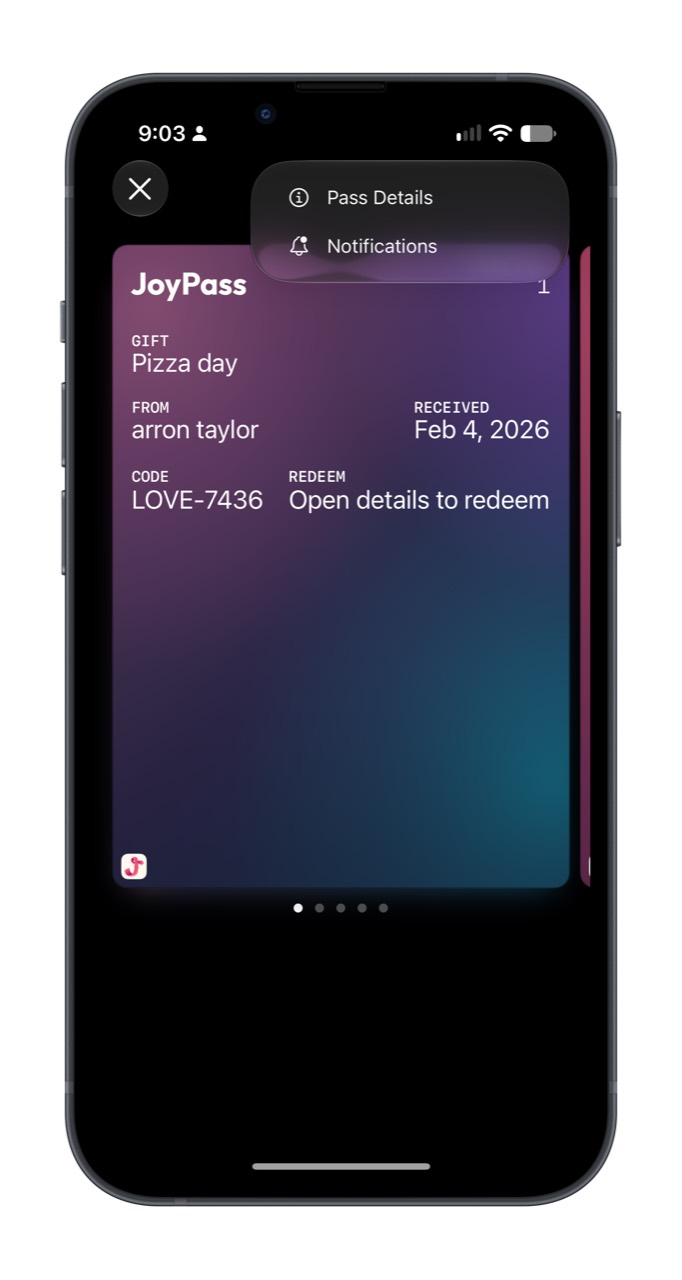 Enlarge screenshot
Step 03
Open the App Clip
Scroll down in Pass Details to Redeem in Clip. Tap the link beneath it to open the JoyPass App Clip.
Look for “Redeem in Clip”
You may also see other ways to open the gift. Choose this link to use the App Clip.
Gift set to open later? The redeem link is available after its reveal date.
Next: the shortcut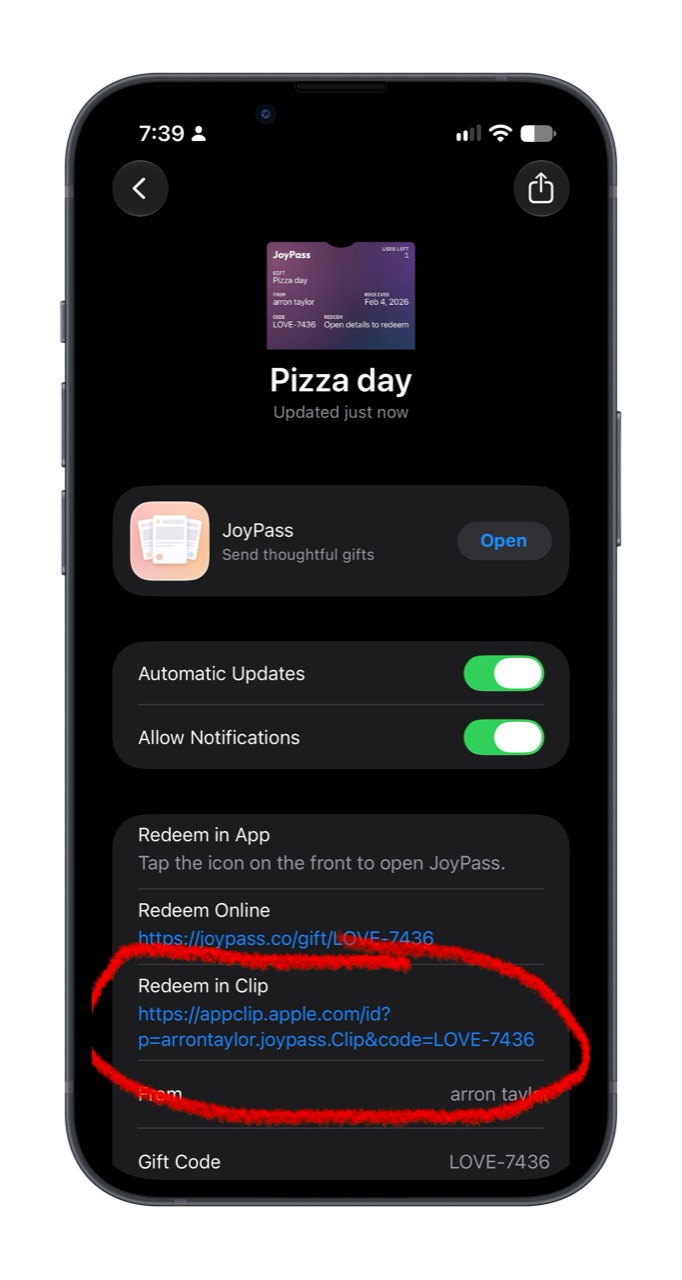 Enlarge screenshot
Step 04
Use the shortcut next time
After opening the App Clip for the first time, look for the JoyPass icon at the bottom left of your pass. Tap it to open JoyPass again.
Don’t see the shortcut?
You can still open Pass Details and use the Redeem in Clip link.
Enlarge screenshot
When you’re ready to use your gift
In the App Clip, tap Redeem 1 use, then confirm. Each confirmation records one use of your gift. Arrange the details with the person who sent it.
Here to help
Need a hand with your gift?
We can help you find your pass or open your gift.